
KMPlayer - All Video Player
PANDORA.TVVideo Players & Editors
4.16.33K Reviews
- Version
- 36.04.235
- Installs
- 10.00M
- Age Rating
- Everyone
Screenshots
Our Review of KMPlayer - All Video Player
 Analysis by Appyee
I keep coming back to KMPlayer - All Video Player for one main reason: it is built around the simple but valuable idea that my video library should not need to be converted before I can watch it. On Android, that matters when a phone contains a mixture of downloaded clips, camera recordings, movies, and less familiar file types. Instead of treating one format as the default and making me search for another player whenever a file behaves differently, KMPlayer aims to be the flexible option.
That focus makes it a more interesting choice than a basic gallery player. It belongs to the video players and editors category, is developed by PANDORA.TV, and is free to install with optional in-app purchases ranging from $1.99 to $19.99 per item. The app is rated for Everyone, so it is approachable for general household use, although the videos opened inside it can of course have their own content. The current version is 36.04.235 and it runs on Android 7.0 or later.
Why broad format support changes everyday playback
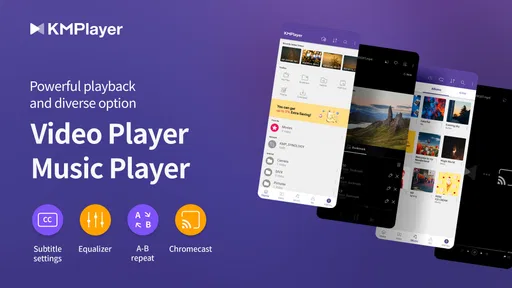
The headline capability is support for a wide range of video files, including MPG, MKV, and HEVC. I see the practical benefit less as a technical checklist and more as a reduction in small interruptions. If I receive an MKV file, keep an older MPG recording, or save a high-efficiency HEVC clip, I can try opening it in the same player rather than immediately looking for a converter or a second app.
That is especially useful for people who move files between devices. A video that plays perfectly on a computer may not be handled gracefully by the phone’s default player. KMPlayer gives those files a dedicated place, which can make a mixed collection feel less troublesome. The real advantage is fewer format-related decisions before watching, not merely the number of formats mentioned in the app’s description.
HEVC support is a good example of why this matters. Newer recordings can use that codec to keep video quality high while managing storage more efficiently, but compatibility varies between devices and default players. When a clip refuses to open in the usual app, KMPlayer is a sensible alternative to test. I would not treat it as a guarantee that every file will play perfectly on every phone, because hardware decoding, the file’s audio track, and the way the video was created still influence the result. It does, however, give me a stronger first option than a player limited to the most common formats.
MKV support is similarly useful for personal video collections. MKV is often chosen as a container for files with more than a simple video track, so a player needs to handle more than just a familiar extension. My advice is to use KMPlayer as the first stop for those files, then pay attention to whether the particular audio or subtitle arrangement behaves as expected. Format compatibility is broad, but “supports the container” and “handles every unusual stream inside it” are not always identical experiences.
A useful test before reorganizing your library
If you are considering a new player because several files fail in your current one, I would not begin by converting everything. Install KMPlayer, place a few representative files in an easy-to-find folder, and test the files that have caused trouble: one older recording, one MKV, and one HEVC clip if you have them. This quick trial tells you more than a long list of supported extensions.
It also prevents a common mistake: assuming that a playback problem is always caused by the video format. Sometimes the issue is the audio stream, a damaged file, or the phone itself. Testing a small sample helps separate those cases. If the same file fails in multiple players, converting or replacing the file may be the real solution. If it works in KMPlayer but not the default app, then the dedicated player has already earned its place.
How I use it in practice
My normal workflow starts with opening a file from the device rather than trying to maintain a perfectly organized library first. That is where a versatile player earns its keep: I can focus on the video I want to watch instead of arranging folders around what the default app happens to recognize. Once a file plays, I can judge the experience on its own terms—whether the picture is smooth, whether the sound stays synchronized, and whether navigation feels comfortable on my particular phone.
For a large local collection, I recommend keeping your folders meaningful before importing or browsing through them. Separate personal recordings from downloaded material and long-form videos from short clips. That is not a special feature of KMPlayer, but it makes a noticeable difference because a capable player can expose the mess in a library just as easily as it solves compatibility problems. A little organization means less scrolling and fewer accidental openings.
The app’s free price makes this experimentation easy. I can try it with a handful of difficult files without committing to a purchase first. The optional purchases are worth considering only after I know that the player fits my habits. I would not pay simply because a file has an uncommon extension; first I would confirm that playback works well on my device and that the app’s interface suits the way I watch.
One practical point is device age. The minimum operating system is Android 7.0, which keeps the app available to many older phones, but compatibility with the operating system is not the same as identical performance across all hardware. A modern phone may handle demanding HEVC video more comfortably than an older model. If playback stutters, I would test a smaller or less demanding file before blaming the app, then compare the same clip in another player to identify whether the limitation is decoding power or software behavior.
The everyday scenario where it makes the most sense
Imagine returning from a trip with several types of footage. Your phone has its own camera clips, a family member has sent an MKV file, and an older computer has supplied an MPG recording. The default video app opens some of these but ignores another. This is exactly the kind of mildly annoying situation where I would install KMPlayer. One app becomes the common testing ground instead of forcing each file into a different workflow.
For this scenario, I would create a temporary “to watch” folder, copy only the relevant files into it, and test them one by one. That approach has two advantages. It keeps the player’s browsing experience manageable, and it quickly reveals whether a problem belongs to a file or to the whole collection. After watching, I can move the files to permanent folders or remove the temporary copies. The player is most useful here as a compatibility bridge, not as a replacement for sensible file management.
It can also help when I want to watch something offline and do not want to depend on a streaming service’s catalog or connection. That does not make KMPlayer a streaming subscription, cloud locker, or media server. Its value is strongest when the video is already available on the device and the challenge is opening it comfortably. If your viewing is almost entirely through streaming platforms, a dedicated local player may add little to your routine.
What to expect from the viewing experience
I judge a local player by three things: whether it opens the file, whether it keeps audio and video together, and whether I can recover easily after pausing or leaving the app. KMPlayer’s broad-format purpose addresses the first question, but the other two still depend on the file, device, and how you use it. A player that opens everything but makes long videos awkward is not a complete solution.
For long recordings, I prefer to watch in short sessions and return later rather than leave a file running in the background for hours. This makes it easier to notice whether the app resumes where I stopped and whether the phone remains comfortable during playback. I would also test a demanding file while the device is not overloaded with other tasks. That gives a fairer impression than judging it while many apps are active.
Subtitles and unusual audio arrangements deserve their own check when they matter to you. A file can be technically recognized while still requiring extra attention to its subtitle or audio setup. If you regularly watch material with multiple tracks, test one of your own files before making KMPlayer your only player. This is a more useful evaluation than relying on a generic promise of broad compatibility.
The trade-offs behind choosing a flexible player
Flexibility does not remove every source of friction. A player that is comfortable with many file types may feel more involved than the simple app that opens a camera clip and does nothing else. New users may need a little time to understand where local files appear, how their folders are arranged, and which playback choices matter for different videos. I consider that a fair trade when compatibility is the priority, but it may be unnecessary complexity for someone who watches only ordinary phone recordings.
There is also a difference between “one player for many files” and “one perfect player for every file.” A particular video may contain an unusual codec combination, a damaged stream, or an audio format that behaves differently from the picture. When that happens, I would not immediately conclude that KMPlayer is useless. I would compare the file with another known-good video, test the same file elsewhere, and decide whether the issue is isolated. At the same time, I would not promise myself that any single app can replace every specialized tool.
The free model is another consideration. The app costs nothing to install, but optional purchases are present. That does not automatically make it a poor choice, yet I prefer to understand the basic experience before spending anything. If you want a completely minimal player with no reason to explore paid extras, a simpler alternative may feel more comfortable. If you value format range enough to tolerate a richer app, the free starting point is convenient.
Compared with a phone’s built-in player, KMPlayer’s strongest argument is breadth. The default option is often quicker for a recent camera video because it is already integrated into the device, but it may be less helpful when files come from different sources. Compared with a streaming app, KMPlayer gives you control over local files rather than a catalog, account, or network connection. Compared with a highly specialized desktop media player, it is the more convenient choice for watching directly on an Android phone, while a computer may still be better for repairing, converting, or deeply inspecting problematic files.
I also would not choose it solely because a file has a fashionable codec name. HEVC can be efficient, but playback quality depends on hardware and the recording itself. If your phone struggles with that kind of video, a different player may not solve the underlying performance limit. In that case, a lower-resolution copy or a converted file can be more effective than repeatedly switching apps.
Three habits that make the app more useful
- Build a small compatibility sample: keep one ordinary clip, one MKV, one MPG file, and one HEVC file if available. Test them after an update or on a new phone so you know what your actual device handles well.
- Separate testing from archiving: use a temporary folder for files you are checking. This prevents a failed experiment from turning your main library into a confusing list of duplicates.
- Compare failures intelligently: if one file fails, try another file of the same type. If every demanding file struggles, look at device performance; if only one file fails, inspect that file before changing your whole setup.
These habits sound simple, but they change how I evaluate a player. Instead of asking whether KMPlayer is universally perfect, I ask whether it solves my particular compatibility problem without creating a new one. That is a much more honest standard and leads to a better choice.
Who gets the most value from it
I would recommend KMPlayer to people with mixed local libraries, users who regularly receive videos from different devices, and anyone who has already found that the default player refuses certain files. It is also a practical choice for someone moving between older recordings and newer HEVC footage, because the app gives those files a shared place to start. Its audience is not limited to technical users; the main benefit is simply avoiding unnecessary format conversion.
The app has broad reach, with over 10 million installs and an average rating of 4.1 from around 385 thousand ratings. That suggests it is not a niche experiment, although popularity should not replace testing on your own phone. Its Everyone age rating also makes it easy to consider for general family devices, provided each person uses it to open suitable videos.
I would tell a friend to skip it if nearly all their viewing happens inside streaming services, if their built-in player already opens every local clip they own, or if they want the absolute simplest interface with no interest in handling varied formats. I would also suggest keeping a second option available for files with unusual audio, subtitle, or codec combinations. Choosing KMPlayer does not require abandoning every other player; it can simply become the app I reach for when the ordinary route fails.
Its history also gives it some staying power: it was released on March 19, 2014, and continues to be available in a current release. I see that as useful context rather than a reason to install it by itself. What matters in practice is whether the present version behaves well with your files, your Android device, and your preferred way of browsing local video.
My recommendation after using it
KMPlayer - All Video Player is at its best when the problem is not finding something to watch, but getting a video you already have to open. Its support for formats such as MPG, MKV, and HEVC gives it a clear purpose, and the free entry point makes it easy to test without reorganizing your entire library first. I appreciate that it can act as a common player for files gathered from different sources.
I would approach it with realistic expectations. Broad compatibility is a strong starting point, not a promise that every unusual file will play flawlessly on every Android phone. Test your own difficult clips, keep folders tidy, and compare isolated failures before deciding that you need a converter or another app. That small amount of practical checking reveals whether the player genuinely fits your device.
For me, the deciding question is simple: do you regularly encounter videos that your default player cannot handle? If the answer is yes, KMPlayer is an easy recommendation to try. If the answer is no, it may feel like extra software for a problem you do not have. As a free video player from PANDORA.TV with a clear emphasis on broad local playback, it earns its place most convincingly as a dependable second door into a mixed video library.
Verdict
Strengths of KMPlayer - All Video Player
- Supports a wide range of video and subtitle formats.
- Hardware acceleration helps deliver smoother playback.
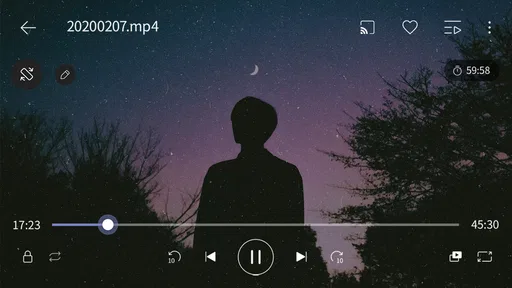
- Offers gesture controls for volume, brightness, and seeking.
- Includes subtitle customization for size, color, and position.
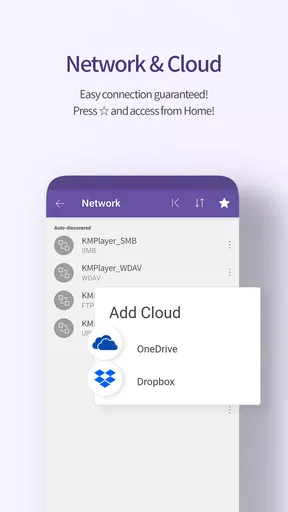
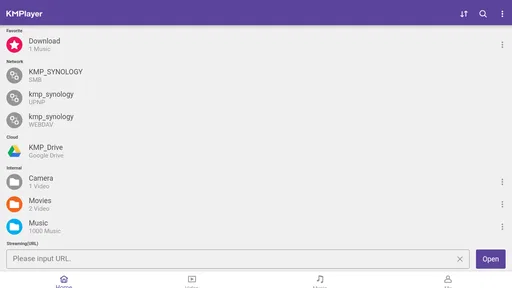
- Can play videos from network storage and cloud services.
Limitations of KMPlayer - All Video Player
- Some advanced features and content may require in-app purchases.
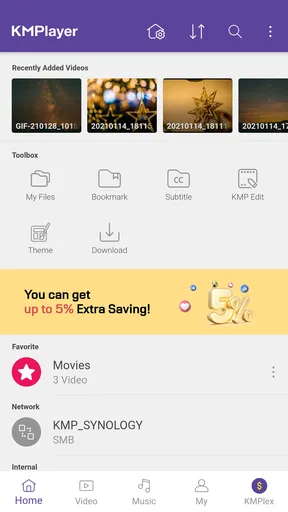
- The interface can feel crowded because of its many tools.
- Ads may appear during use in the free version.
- High-resolution playback can consume significant battery power.
- Network and cloud playback may depend on connection quality.
Other Releases by PANDORA.TV
View All
KMPlayer Plus (Divx Codec)
Video Players & Editors4.2
Similar Picks in This Category
View All
Google TV
Google LLC3.9

iTunes
Apple4.7

YouTube
Google LLC3.8

MX Player
Amazon Mobile LLC4.2

CapCut - Video Editor
Bytedance Pte. Ltd.3.5

PLAYit-All in One Video Player
PLAYIT TECHNOLOGY PTE. LTD.4.5
Frequently Asked Questions
What video formats does KMPlayer support?
KMPlayer supports a broad range of common video and audio formats, including MP4, AVI, MKV, MOV, FLV, WMV, 3GP, MP3, and more. In testing, it handled most locally stored videos without requiring conversion. Compatibility can still depend on the codec, file condition, and device hardware, so unusually encoded or damaged files may not play perfectly.
Can KMPlayer play videos stored on my phone or tablet?
Yes. KMPlayer can scan and play compatible videos saved in your device storage, making it useful for offline viewing. You may need to grant permission for the app to access media files, depending on your Android or iOS version. Once permission is provided, your videos are generally organized through the built-in library for easier browsing.
Does KMPlayer support subtitles?
KMPlayer includes subtitle support and can display subtitle files alongside compatible videos. It offers useful controls for adjusting subtitle size, position, color, and synchronization when text appears too early or late. Subtitle compatibility may vary by file type and encoding, but the available settings make the player practical for movies, series, and multilingual content.
Can KMPlayer stream videos from online services or cloud storage?
KMPlayer is primarily designed as a media player for local files, but it may also provide access to network, cloud, or online playback features depending on the mobile version and current app configuration. Availability can differ between Android and iOS, as well as by region. Users should check the app’s permissions and supported services before relying on it for streaming.
Is KMPlayer free to download and use?
KMPlayer can generally be downloaded and used without an upfront purchase, although the free experience may include advertising or optional premium features. Some advanced functions, depending on the platform and version, may require an in-app purchase or subscription. Before installing, review the current store listing to confirm pricing, advertising details, and available features for your device.
